
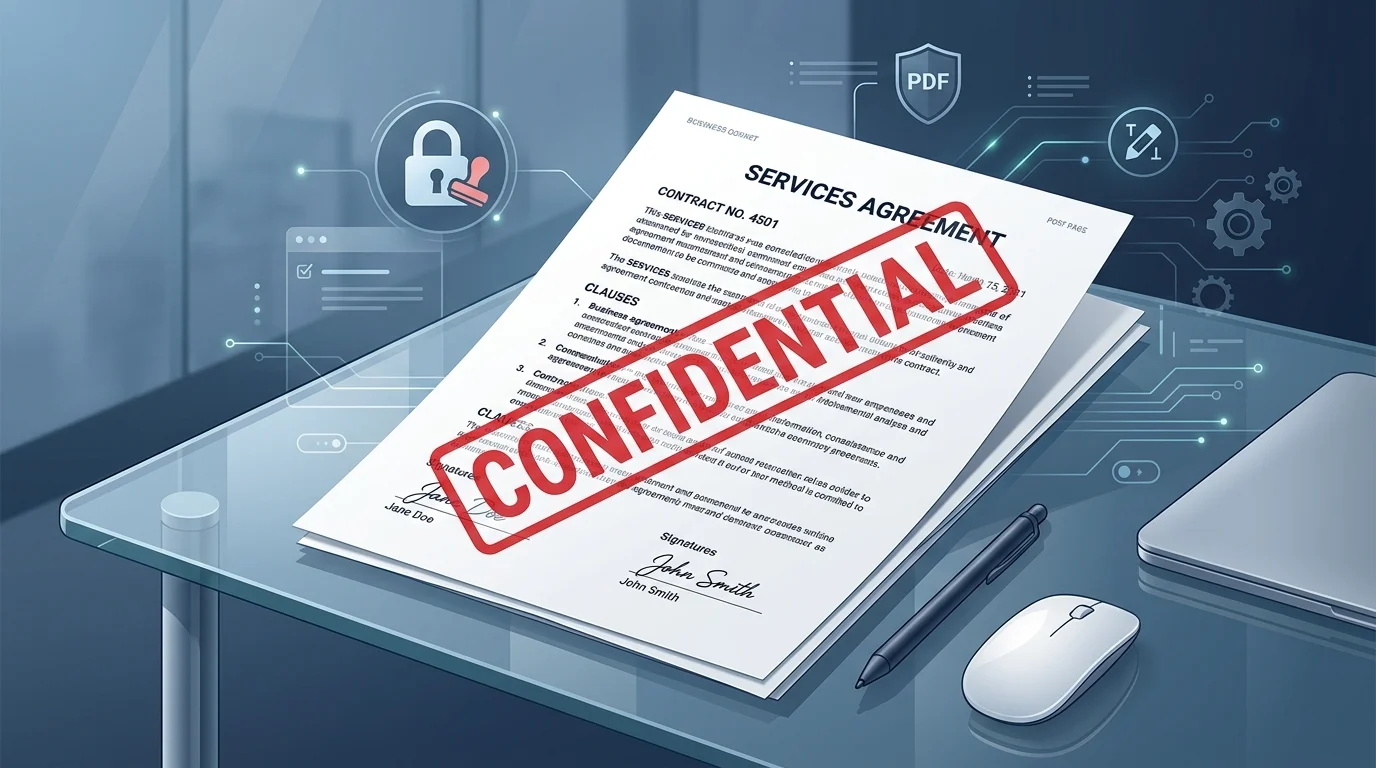
QuickAnswer: How to Add Watermark to PDF
To add a watermark to a PDF (or watermark a PDF) without paying $239.88/year for Adobe Acrobat Pro, choose the method that matches your immediate operating environment:
- In-Browser WebAssembly (Fastest, 100% Private & Free): Open the PdfCompare Watermark Studio. Drag and drop your PDF, click a preset stamp like CONFIDENTIAL or type your own text, fine-tune opacity (e.g.
25%) and diagonal rotation, and click Download Watermarked PDF. Zero server uploads; execution completes in local device RAM in milliseconds. - macOS Apple Preview (Native Free Workaround): Open the PDF in Preview, toggle the Markup Toolbar (
Shift + Cmd + A), click the Text box (T) icon, type your stamp, scale the font size, and use a two-finger trackpad rotation gesture to angle the text diagonally. - Microsoft Word (For Word-Authored Documents): Open the source
.docxfile in Word, navigate to the Design tab, click Watermark, choose Custom Watermark > Text Watermark, configure text and transparency, and export via File > Save As > PDF. - Adobe Acrobat Pro (Enterprise Desktop): Open the document in Acrobat, open the Edit PDF toolset from the right sidebar, click Watermark > Add, configure the source text, rotation, and opacity, and click OK.
Why Adding a Watermark Is Essential for Document Security
Whether you are negotiating a strategic enterprise buyout, circulating a draft manuscript, or issuing specimen accounting invoices, transmitting unstamped documents exposes your organization to severe legal and commercial vulnerabilities:
- Corporate NDAs & Strategic Proposals: Tagging draft agreements with CONFIDENTIAL establishes clear legal notice under Trade Secret and Non-Disclosure statutes, preventing recipients from claiming ignorance if materials leak.
- Work-In-Progress Reviews & Audits: Marking design blueprints or contract revisions with DRAFT - FOR REVIEW ONLY prevents contractors or clients from executing outdated terms or mistaking preliminary numbers for final approval.
- Specimen Invoices & Financial Statements: Adding a prominent SAMPLE or VOID diagonal banner prevents duplicate payment submissions, fraudulent factoring, or misinterpretation during client procurement onboarding.
- Recipient Leak Tracing: Stamping customized recipient identifiers (e.g., Licensed to Alpha Capital LLC) deters unauthorized redistribution among competing bidders.
However, many online watermark utilities upload your confidential files to unknown multi-tenant cloud servers, while commercial desktop editors demand costly recurring subscriptions. Below are the four best free and secure methods to watermark PDF pages on Mac, Windows, and Linux.
Method 1: The In-Browser WebAssembly Method (Recommended)
When handling sensitive legal contracts, tax filings, or intellectual property disclosures, uploading documents to third-party web servers introduces unacceptable compliance risks.
Our client-side PdfCompare Watermark Studio runs entirely inside your web browser sandbox using WebAssembly (WASM) and native vector stream injection. Your files never cross the network.
Step-by-Step Instructions:
- Navigate to the free PdfCompare Watermark Studio.
- Drag and drop your PDF document into the workbench (or click Load Sample Agreement to explore the interactive canvas with a realistic 3-page NDA).
- Select a preset stamp tag (CONFIDENTIAL, DRAFT, SAMPLE, COPY, INTERNAL USE ONLY) or type custom text into the input box.
- Customize placement and appearance:
- Position: Choose Diagonal 45°, Center Flat, or corner alignments.
- Opacity Slider: Set transparency between 15% and 30% (25% is recommended for optimal contrast without obstructing underlying text).
- Font Size: Adjust from 20pt up to 110pt according to page dimensions.
- Color Swatches: Pick Crimson Red, Charcoal Slate, Enterprise Blue, or custom hex codes.
- Choose your target page scope: All Pages, First Page Only, or specify custom ranges like
1, 3-5. - Inspect the real-time canvas preview across all pages.
- Click the gradient Download Watermarked PDF button. Your stamped vector document is compiled in memory and downloaded instantly.
Why this method is superior:
- 100% Vector Quality (ISO 32000): Unlike raster converters that blur text into low-DPI images, our engine injects clean vector glyphs directly into the PDF content stream.
- Zero Cloud Leakage: Fully operational even if you disconnect your Wi-Fi after loading the page.
- Universal Compatibility: Works identically on macOS, Windows 10/11, Ubuntu Linux, iOS, and Android.
Method 2: The macOS Apple Preview Native Method
If you are on an Apple Mac and only need to add a quick textual watermark to a single page without installing third-party apps, you can use the built-in Preview markup tools.
Step-by-Step Instructions:
- Double-click your PDF to open it in Apple Preview.
- If the toolbar is hidden, click the Show Markup Toolbar button (the marker pen icon in the top-right corner, or press
Shift + Cmd + A). - Click the Text tool (T) button to insert a new editable text frame on the page.
- Type your watermark text (e.g.
CONFIDENTIALorDRAFT). - Click the Text Style (A) icon on the markup bar to increase the font size to 48pt–72pt, select Bold, and choose a soft grey or crimson font color.
- Rotate Diagonally: Place two fingers on your Mac trackpad and twist them clockwise to rotate the text box to a 45-degree angle.
- Drag the text box to the visual center of the page.
- Press
Cmd + Sto save the modified document.
Limitations of the Preview method:
- Manual Repetition: Preview cannot automatically replicate annotations across all 50 pages of a document; you must manually copy and paste the text box onto every single page.
- Removable Annotations: Preview saves text boxes as standard PDF annotation overlays, which can be easily clicked and deleted by recipients in standard PDF readers.
Method 3: The Microsoft Word Watermark & PDF Export Method
If your PDF was originally authored in Microsoft Word, or if you maintain the source .docx file, Microsoft Word includes a native document watermarking subsystem.
Step-by-Step Instructions:
- Open your source document in Microsoft Word.
- Click on the Design tab in the top ribbon (in older Word versions, look under the Page Layout tab).
- In the Page Background section on the far right, click the Watermark dropdown.
- Select one of the built-in gallery presets (such as CONFIDENTIAL 1 or DO NOT COPY 1), or click Custom Watermark....
- In the dialog box, select Text watermark:
- Text: Type your custom string.
- Font: Select Arial or Calibri.
- Size: Set to Auto.
- Color: Select Light Gray and check the Semitransparent box.
- Layout: Select Diagonal (45°) or Horizontal.
- Click Apply, then Close. Word automatically applies the background watermark to every header and footer section across all pages.
- Navigate to File > Save As (or File > Export), set the file format to PDF (*.pdf), and save.
Limitations of the Word method:
- Source File Dependency: If you only possess a raw read-only PDF file, opening it in Word requires Word's PDF reflow conversion, which frequently breaks complex multi-column layouts, tables, and exact typography.
Method 4: Adobe Acrobat Pro (Commercial Desktop Suite)
For enterprise legal teams and corporate print shops that already pay for an Adobe Creative Cloud license ($239.88/year per seat), Adobe Acrobat Pro provides comprehensive page watermarking tools.
Step-by-Step Instructions:
- Open your document in Adobe Acrobat Pro.
- In the right-hand tool panel, click Edit PDF (or select Tools > Edit PDF from the top menu).
- In the Edit PDF secondary toolbar, click Watermark and select Add....
- In the Add Watermark dialog:
- In the Source section, enter your watermark text in the text box.
- Set the font family, font size, and color swatch.
- In the Appearance section, drag the Opacity slider to approximately
25%. - In the Position section, select Rotation and enter
45degrees.
- Click Page Range Options in the top-right corner if you wish to apply the stamp only to specific page subsets.
- Inspect the live preview thumbnail in the right pane, then click OK.
- Select File > Save (
Cmd + SorCtrl + P) to finalize the file.
Technical Comparison Matrix
The table below summarizes how the four approaches compare across speed, security, vector preservation, and cost:
Comparing All 4 Methods to Add Watermark to PDF
Confidential NDAs, contracts, invoices, draft iterations
Simple one-off text annotations on Mac
Documents authored directly in Microsoft Word
Enterprise prepress, legal discovery & batch stamping
Best Practices for Professional PDF Watermarking
To ensure your watermarked documents look authoritative while maintaining full document utility, follow these three design and security best practices:
1. Maintain the 15%–30% Opacity "Sweet Spot"
A common mistake is stamping watermarks at 100% solid opacity, which completely blocks text, clauses, and account numbers underneath. Conversely, setting opacity below 8% risks disappearing entirely when printed on monochrome laser printers. A transparency value of 20% to 25% guarantees that the stamp is glaringly obvious on screen while remaining unobtrusive during legal review.
2. Prefer True Vector Streams Over Image Rasterization
Avoid third-party software that converts your PDF into a series of JPEG images to "burn in" the watermark. Rasterization inflates a 2MB PDF into a 45MB monstrosity and destroys crisp font rendering when zoomed on Retina or 4K displays. Always use tools like PdfCompare Watermark Studio that inject native font operators directly into the ISO 32000 PDF content stream.
3. Verify Page Accuracy After Stamping
Before sending stamped agreements to external third parties or judicial registries, open the original file and the stamped file side by side in a dedicated diffing tool like our Compare Two PDF Files Tool. This guarantees that margins, signature lines, and form coordinates did not shift during processing.
Frequently Asked Questions
Frequently Asked Questions
The fastest free and private method is using a client-side WebAssembly utility like PdfCompare Watermark Studio. Open the tool in your browser, drag and drop your PDF, choose a preset stamp like CONFIDENTIAL or type custom text, adjust opacity (typically 20% to 30%), and click 'Download Watermarked PDF'. The vector watermark is stamped directly in local browser memory without uploading your file to any external cloud server.
Summary: The Fastest, Safest Way to Watermark PDFs
For quick one-off personal notes on a Mac, Apple Preview provides an adequate temporary markup workaround. If you are drafting a document from scratch in Microsoft Word, Word's built-in background watermark is effective prior to initial export.
However, when you need to stamp existing contracts, NDAs, invoices, or multi-page PDF documents securely without paywalls, subscriptions, or cloud privacy risks, the browser-native PdfCompare Watermark Studio is the most efficient, private, and precise solution available.