
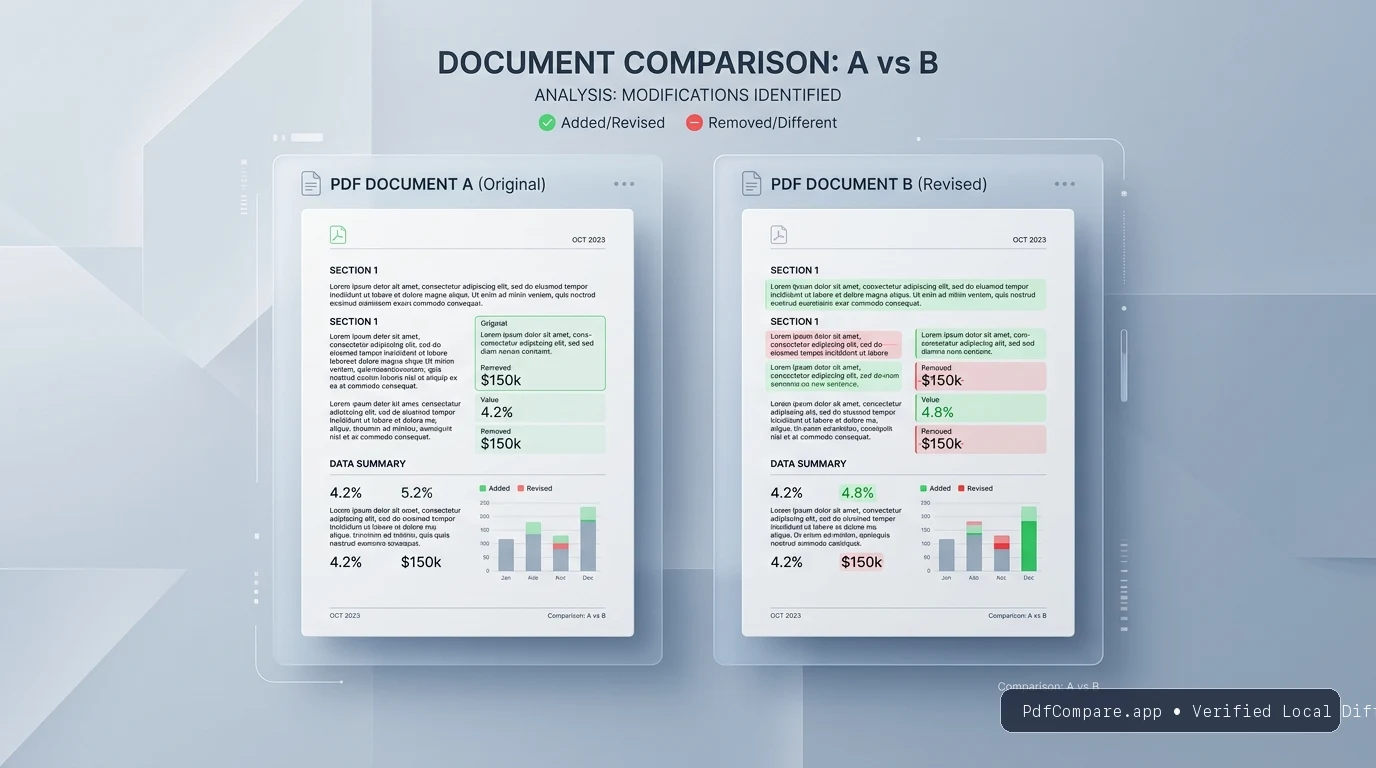
QuickAnswer: How to Compare Two PDF Files Side by Side
Compare two PDF files in seconds — see every difference side by side. No upload, 100% private. Step-by-step for Windows, Mac & browser.
To compare two PDF documents or diff two PDF files accurately, you have three primary methods depending on your operating system, budget, and privacy requirements:
- In-Browser WebAssembly (Fastest, 100% Private & Free): Open a client-side comparison utility like Compare Two PDF Files Online, drag both files into the workbench, and instantly inspect side-by-side redlines. Your document bytes never leave your device memory, making it completely private and free on Windows, Mac, and Linux without installation.
- Adobe Acrobat Pro (Commercial Desktop Suite): Open Acrobat, select Tools > Compare Files, assign the older file on the left and newer file on the right, and click Compare. Acrobat generates a multi-page diff report detailing insertions, deletions, and styling modifications ($239.88/year subscription required).
- Open-Source Command Line (
diff-pdf): For developers and engineers reviewing CAD blueprints or technical drawings, rundiff-pdf --output-diff=output.pdf file1.pdf file2.pdfto produce a color-coded pixel overlay highlighting graphical shifts.
The Challenge: Why Comparing PDFs Is Uniquely Difficult
Unlike Word documents (.docx) or plain text files (.txt), a PDF is not a continuous stream of flowing text. It is a digital print canvas.
When software generates a PDF, it places text characters and vector lines at fixed absolute coordinates (X, Y) on a virtual page. As a result, comparing two revisions of a PDF presents two distinct challenges:
- Semantic Text Alterations: Detecting when a word, clause, or numerical threshold has been edited, inserted, or deleted (e.g., changing "net 30 days" to "net 60 days").
- Physical Layout & Visual Shifts: Detecting when text remains identical, but a corporate approval stamp, architectural vector line, or margin has moved.
Choosing the wrong comparison method often results in diff noise—where a simple added carriage return causes every subsequent line on a 40-page contract to be falsely flagged as altered.
How Client-Side PDF Comparison Resolves Text & Layout Drifts
Document Ingestion
Original (v1) and Revised (v2) PDFs loaded into local browser memory. Zero document bytes uploaded to remote servers.
Bifurcated Analysis
Simultaneously decouples textual semantics from coordinate-level graphic rendering.
Extracts word streams; immune to layout reflow & margin shifts.
Rasterizes vector pages; exposes moved stamps & CAD lines.
Verified Discrepancy UI
Instant discrepancy navigation with synchronized scrolling and precision delta markers.
Multi-Approach Comparison: Which Method Fits Your Workflow?
Before diving into step-by-step instructions, examine the technical trade-offs of each major approach:
Compare privacy, license cost, diff precision, and operational overhead across 4 approaches.
| Evaluation Dimension | Browser Wasm (PdfCompare) | Adobe Acrobat Pro | Command-Line (diff-pdf) | Word Export Diff |
|---|---|---|---|---|
| Primary Workflow | Direct browser drag-and-drop | Desktop software installation | Terminal command execution | Convert to DOCX > Word Track Changes |
| Confidentiality & Privacy | 100% Local RAM Zero server uploads | Local desktop execution | Local machine execution | Depends on third-party converter cloud |
| Pricing / License | Free Forever Zero subscription / account | $239.88 / year per user | Free / Open-source (GPL) | Requires Microsoft 365 license |
| Visual Pixel Diff | Curtain slider & Canvas diff | Image overlay comparison | High-contrast pixel overlay | No (Text reflow only) |
| Word-Level Redline | A4 Side-by-Side & Unified | Annotated revision report | No (Highlights bounding boxes) | Word Track Changes redline |
| Reverse Upload Swap | 1-Click A/B Swap (⇄) | No (Must manually re-select files) | No (Must re-type arguments) | No (Must re-select files) |
| Setup Overhead | 0 Seconds (Open URL & run) | Heavy install (~2GB disk space) | Requires Homebrew / C++ build tools | Multi-step file format conversion |
Industry Audit Benchmarks: Real-World Case Studies & Data Impact
Different industries face distinct liability risks when comparing revised documents. Examine how legal counsel, financial auditors, and structural engineers detect high-stakes changes:
Cross-Industry Case Studies: Catching High-Risk Document Alterations
Explore concrete examples of subtle revisions that slip past manual human review, and see how targeted comparison algorithms catch them instantly.
"...In no event shall either party's aggregate liability arising out of or related to this Agreement exceed the sum of Fifty Thousand Dollars ($50,000 USD) or the total fees paid in the twelve (12) months preceding the claim. This Agreement shall be governed by the laws of the State of New York, USA..."
"...In no event shall either party's aggregate liability arising out of or related to this Agreement exceed the sum of Five Hundred Thousand Dollars ($500,000 USD) or the total fees paid in the twelve (12) months preceding the claim. This Agreement shall be governed by the laws of England and Wales, UK..."
Method 1: How to Compare Two PDF Files Side by Side in Your Browser (Recommended)
When learning how to compare pdf documents or looking to diff two pdf files quickly, client-side WebAssembly offers the optimal balance of speed, accuracy, and absolute confidentiality. You do not need to install software or register an account.
Step 1: Open the Dedicated Comparison Workbench
Navigate to the dedicated Compare Two PDF Files Online tool. Notice that the tool loads immediately above the fold with zero mandatory registration prompts.
Step 2: Load Your Two Documents
- Drag your baseline file into Slot 1 (Original / v1).
- Drag your revised file into Slot 2 (Revised / v2).
- Accidentally placed the revised draft in Slot 1? Click the animated Swap (⇄) button in the center. The files and diff calculations invert in one millisecond without requiring you to clear and re-upload.
Step 3: Review Differences Side-by-Side (Doc View)
Click Compare Both PDFs Now. The tool renders an authentic dual-pane A4 layout to compare two pdf files side by side:
- Left Sheet (Original): Shows removed clauses with soft red strikethrough styling.
- Right Sheet (Revised): Shows added clauses with clean emerald green highlighting.
Step 4: Navigate Sequentially Across Differences
Instead of manually scrolling through 40 pages looking for small green highlights, use the built-in Difference Navigator:
- Press N on your keyboard (or click Next Diff) to smooth-scroll directly to the next change block.
- A pulsing spotlight ring locks your focus onto the exact clause modified.
- Press P to return to previous revisions.
Step 5: Switch to Pixel Overlay for Blueprints and Stamps
If you are comparing architectural schematics or official agreements with corporate seals:
- Switch to the Pixel Overlay tab.
- Drag the interactive Curtain Slider horizontally to reveal visual alterations, signature relocations, and moved title blocks.
Step 6: Export Your Differential Audit Changelog
Click Export Log to download a structured, timestamped .txt summary containing total addition and deletion counts alongside an itemized list of all modified sections for compliance archiving.
Auditing Turnaround Benchmark: Quantifying Time Saved
How much operational overhead does client-side WebAssembly eliminate compared to traditional manual review? Review empirical timings across five standard enterprise auditing scenarios:
Manual Verification vs. Local Wasm Diff: Time Saved Queue
hollow ring = manual side-by-side review · solid green = PdfCompare Wasm · strung beads = countable minutes saved
Method 2: How to Compare Two PDF Files in Windows with Adobe Acrobat Pro
If you need to compare two pdf files in windows or macOS and your organization already licenses Adobe Creative Cloud, Acrobat Pro includes an integrated comparison module.
Step 1: Launch the Compare Files Tool
- Launch Adobe Acrobat Pro on your Windows PC or Mac.
- Click on the Tools tab in the top navigation bar.
- Scroll to the Share & Review group and click Compare Files.
Step 2: Select Old and New Files
- In the left panel (Old File), click Select File and pick your original document version.
- In the right panel (New File), click Select File and pick your updated document version.
- (Optional): Click Settings to customize whether Acrobat should compare text, annotations, formatting, or background graphics.
Step 3: Run the Comparison
- Click the blue Compare button.
- Acrobat processes both files and generates a new document entitled Compare_Report.pdf.
- The report opens with an executive summary displaying total percentage changes, text replacements, insertions, and deletions.
Step 4: Filter Revisions
- Use the right-hand Filter panel to toggle specific difference types (e.g., hide minor font changes and display only text content alterations).
- Click any revision in the list to jump to its location in the side-by-side viewer.
When to Avoid Acrobat Pro: If you frequently audit contracts on client laptops where you cannot install proprietary desktop apps, or if your department cannot justify the recurring $239.88/year per-seat subscription cost.
Method 3: Command-Line Visual Diff for Developers (diff-pdf)
For software engineers, DevOps teams, or technical designers who need automated diffing in CI/CD pipelines or local terminal environments, the open-source utility diff-pdf is an industry favorite.
Step 1: Install diff-pdf
On macOS using Homebrew:
brew install diff-pdf
On Debian/Ubuntu:
sudo apt-get install diff-pdf
Step 2: Run a Visual Comparison
To open an interactive GUI window comparing two files:
diff-pdf --view original_drawing.pdf revised_drawing.pdf
To output a composite PDF where matching elements are black and differences are highlighted in high-contrast cyan and magenta:
diff-pdf --output-diff=comparison_result.pdf original_drawing.pdf revised_drawing.pdf
Step 3: Interpret the Output
- Black Pixels: Elements that exist identically in both documents.
- Red / Magenta Pixels: Content present only in the original document (deleted).
- Cyan / Blue Pixels: Content present only in the revised document (added).
Limitation:
diff-pdfperforms coordinate-level pixel rendering. If a revised document adds a paragraph that pushes all subsequent pages down by two inches,diff-pdfflags every subsequent page as completely modified.
4 Critical Edge Cases & How to Handle Them
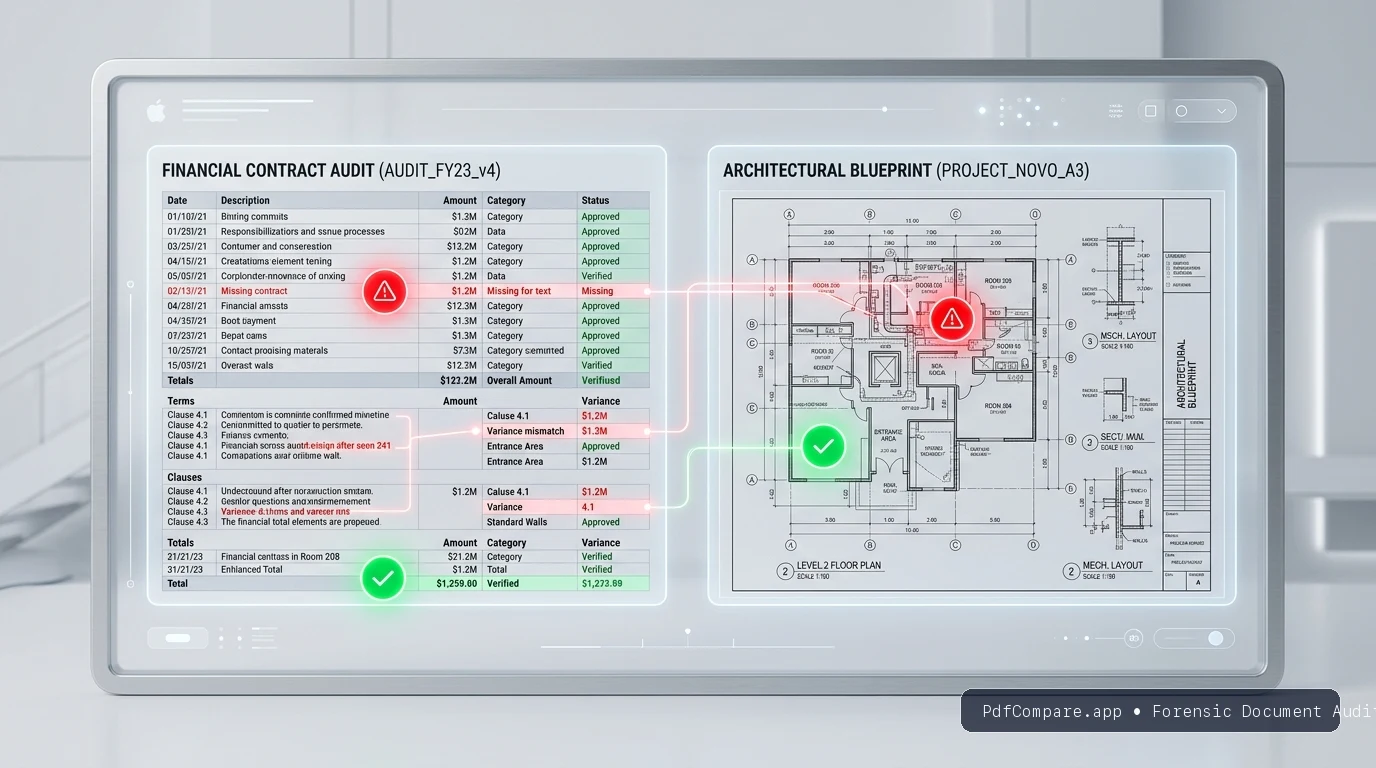
Figure 2.1: Forensic auditing edge cases. Left: numerical variance mismatches in financial statements ($1.2M vs $1.3M). Right: architectural CAD blueprint structural alignment shifts.
© PdfCompare.app Forensic Audit
1. The "False Positive" Reflow Trap
The Problem: A legal draft inserts a single sentence on Page 2. Because PDF pages have fixed boundaries, this pushes paragraph 3 onto Page 3, and paragraph 4 onto Page 4. In standard visual comparison tools, pages 3 through 30 light up entirely in red, falsely claiming 100% of the document changed.
The Solution:
- Do not rely on visual pixel diffing for text-heavy documents that have re-paginated.
- Use a semantic token/word differential engine (like PdfCompare's Doc View) and enable "Ignore Whitespace". The semantic parser tracks the actual vocabulary and sentences across page boundaries, correctly isolating the single added sentence while ignoring downstream coordinate reflows.
2. Scanned Image PDFs (Flattened Pages)
The Problem: One or both of your documents was scanned from physical paper or exported as flattened raster images. When you attempt text comparison, the software reports "0 differences found" or fails to load.
The Solution:
- Check if text is selectable in your PDF reader. If clicking and dragging does not highlight individual words, the document is an image without a digital text stream.
- Use the Pixel Overlay mode with a curtain slider. This compares the raw pixel canvas rather than text characters, making it possible to catch altered signatures, handwriting additions, and adjusted date stamps.
3. Password-Protected and Encrypted Files
The Problem: Highly sensitive financial reports and legal settlements are frequently encrypted with AES-128 or AES-256 owner passwords, preventing browser sandboxes from parsing vector text.
The Solution:
- Client-side WebAssembly tools cannot read encrypted PDF streams without the password.
- Remove password restrictions locally before comparing: open the document in your system's native viewer (e.g., Preview on Mac or Edge on Windows), enter your password, and choose File > Print > Save as PDF to generate an unencrypted working copy for auditing.
4. Financial Digit Swapping in Data Tables
The Problem: A supplier updates an invoice from $14,500.00 to $14,800.00. In a multi-column table with hundreds of entries, manual side-by-side reading has a notorious failure rate because the human brain glazes over identical digits (14,...00.00).
The Solution:
- Always use a tool with character-level or word-level granularity.
- In PdfCompare, numerical modifications are isolated specifically to the altered digit, and the exact difference is itemized in the exported audit changelog.
Summary Checklist for Comparing Two PDFs
Before finalizing any contract or approving an engineering revision, run through this quick quality checklist:
- Verify File Order: Ensure File 1 is the older baseline and File 2 is the latest revision. Use the 1-click Swap button if you accidentally inverted them.
- Select the Right Diff Mode:
- Text contracts & NDAs → Doc View (Side-by-Side Redline)
- Single-page revisions → Unified Redline
- Engineering drawings & stamps → Pixel Overlay
- Filter Out Formatting Noise: Enable Ignore Whitespace to prevent harmless indentation or margin shifts from clouding real clause edits.
- Step Through Every Change: Use the Difference Navigator (N / P) to confirm each addition and deletion individually.
- Archive the Diff Log: Download a timestamped audit report to document your verification trail.
Ready to test your documents? Try the dedicated Compare Two PDF Files Tool right in your browser—no uploads, no installations, and 100% private.