Key Takeaways
- The Core Dilemma: Most online compressors achieve smaller file sizes by converting entire pages into low-resolution JPEG images, making text fuzzy and signatures illegible.
- True Lossless Vector Compression: Preserving 100% vector typography requires re-compressing underlying binary streams (Flate/Deflate) and pruning unreferenced metadata rather than rasterizing text.
- Client-Side Security: Uploading corporate balance sheets, legal briefs, or confidential pitch decks to multi-tenant cloud compressors exposes sensitive business data to external servers.
- Optimal Target Thresholds: Downsampling embedded raster images from 300+ DPI to 150 DPI achieves a 60% to 80% size reduction while keeping graphics pin-sharp on 4K displays and standard office printers.
Quick Answer: How to Compress a PDF Without Losing Quality
Learn how to compress a PDF file without losing quality using client-side vector optimization and smart downsampling. Reduce PDF file size 100% privately.
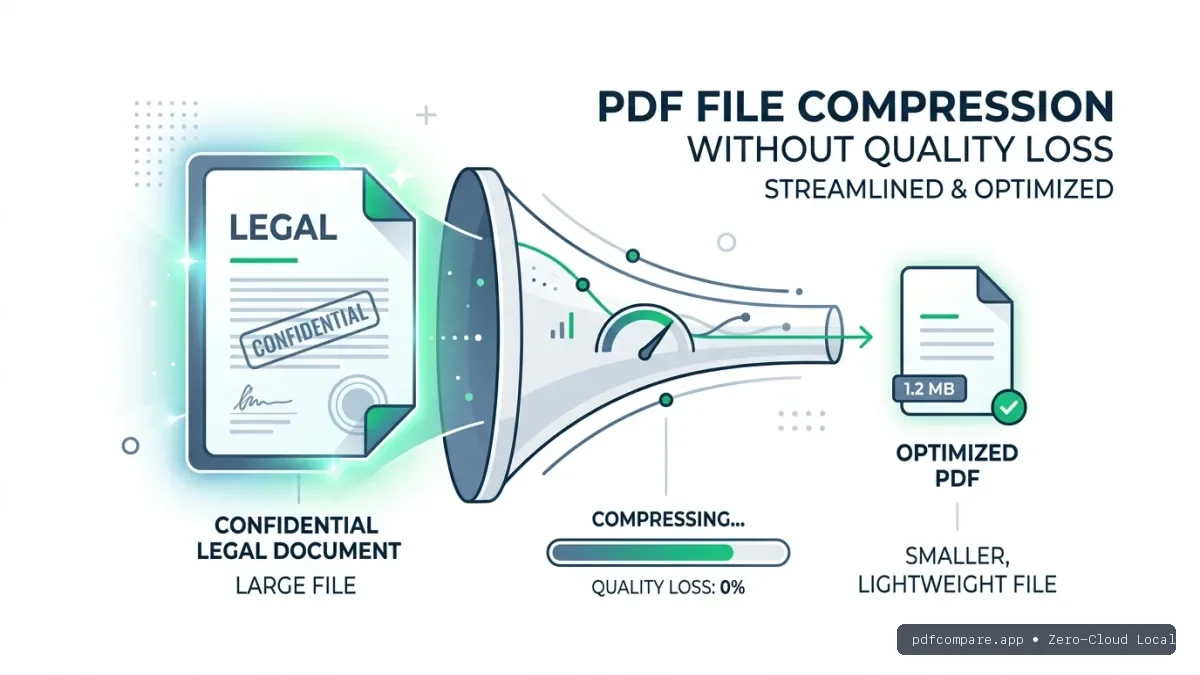
To reduce PDF file size without sacrificing crisp text readability, use our browser-native PdfCompare Compress Studio. It re-compresses internal data streams with WebAssembly (WASM) directly in your device's memory. Unlike cheap web converters that turn pages into blurry 72 DPI images, client-side stream optimization leaves mathematical vector font curves untouched, delivering an immediate 60% to 80% file size reduction with 100% local confidentiality.
The File Size Bottleneck in Modern Document Workflows
Modern corporate workflows depend heavily on PDF documents for contracts, audit reports, regulatory disclosures, and architectural plans. However, these documents frequently suffer from extreme file bloat. A 10-page commercial lease or pitch deck compiled in graphic design tools like InDesign, Canva, or Microsoft PowerPoint can easily balloon into a 45MB behemoth.
This creates severe operational bottlenecks:
- Email Attachment Rejection: Major email providers enforce rigid gateway limits. Google Gmail and Microsoft Outlook reject message payloads exceeding 20MB to 25MB. Attempting to send an uncompressed closing binder to an external legal counterparty frequently results in an immediate
552 5.3.4 Message size exceeds fixed maximum limitbounce-back. - Judicial & Regulatory Portal Failures: State court filing portals (such as CM/ECF and Odyssey File & Serve) strictly cap individual PDF submissions at 10MB to 15MB. Submitting oversized documents leads to immediate rejection by court clerks, risking missed filing deadlines.
- Mobile Latency & Storage Consumption: Mobile clients downloading a 50MB PDF over 4G/5G connections experience lagging scrolling, sluggish rendering speeds, and elevated memory consumption.
To solve this issue, users often search for quick web compressors, only to discover that the resulting PDF is blurry, pixelated, and unreadable. Below, we explain why traditional compression destroys documents, how modern client-side stream optimization solves the problem, and the four best methods to compress PDFs without losing quality.
Why Cheap Online Compressors Make Your PDF Blurry
To compress a PDF without sacrificing quality, one must understand how standard PDF compression engines operate. A PDF file is not a flat bitmap image; it is an ISO 32000 container comprising distinct data streams:
- Vector Typography Streams: Mathematical Bézier curves describing letterforms. These take up minimal space and render with infinite sharpness at any zoom level.
- Embedded Raster Imagery: Photos, scanned receipts, background banners, and corporate logos.
- Embedded Font Subsets: Font metrics and character maps.
- Metadata & Revision History: XML schemas, Adobe thumbnail caches, annotation trees, and incremental edit histories.
The "Lazy Rasterization" Trap: Budget online compressors and ad-heavy freemium web utilities do not perform granular PDF stream inspection. Instead, they render each page of your PDF onto an off-screen canvas at 72 DPI, convert each page into a compressed lossy JPEG image, and recompile those JPEGs into a new PDF.
While the file size drops dramatically, the consequences are disastrous:
- Text is no longer selectable, searchable, or copyable.
- Font edges appear fuzzy and haloed on Retina, 4K, and smartphone screens.
- Fine lines on legal signatures, architectural floorplans, and financial spreadsheets turn into illegible pixel soup.
True professional compression does not touch vector font curves. Instead, it targets embedded raster images, stream redundancy, and orphaned metadata.
How Client-Side PDF Compression Preserves 100% Quality
Flate Deflate Re-Encoding
Re-compresses embedded PDF object streams using modern Flate compression without altering vector font paths or mathematical glyph coordinates.
Adaptive DPI Downsampling
Detects oversized embedded 300+ DPI raster photos, downscaling them to crisp 150 DPI screen resolution using bi-cubic canvas interpolation.
Ghost Metadata Stripping
Purges orphaned print spool caches, unreferenced XObject dictionaries, Adobe thumbnail previews, and historical editing XML blobs.
Method 1: Browser-Native WASM Stream Optimization (Recommended)
For sensitive legal agreements, medical disclosures, and corporate financials, sending files to a remote cloud server violates basic confidentiality and compliance regulations (including GDPR, HIPAA, and SOC 2).
Our free PdfCompare Compress Studio operates entirely inside your web browser using WebAssembly (WASM). Your document remains exclusively in local device RAM, ensuring zero cloud uploads and instant processing.
Step-by-Step Instructions:
- Navigate to the free PdfCompare Compress PDF Tool.
- Drag and drop your oversized PDF document into the compression workbench, or click Choose PDF File to select it from your device.
- Select your desired compression profile based on your distribution requirements:
- Recommended (Balanced Quality & Size): Downsamples embedded photos to 150 DPI and applies maximum Flate stream re-compression. Slashes file size by 60%–75% while keeping text 100% vector-sharp.
- Extreme Compression (Maximum Size Reduction): Optimizes images to 96 DPI and aggressively removes non-essential structural metadata. Ideal for strict 1MB or 2MB portal limits.
- Light Compression (High Print Fidelity): Preserves 220+ DPI resolution for physical commercial printing while purging orphaned internal object tables.
- Review the real-time compression audit readout showing original size, optimized output size, and reduction percentage.
- Click Download Compressed PDF. Your optimized PDF compiles directly in browser memory and downloads to your device in seconds.
Why this method is superior:
- 100% Vector Font Integrity: Text remains authentic vector glyphs. You can zoom in to 800% and text remains pin-sharp.
- Zero Privacy Risk: Byte streams never leave your machine, preventing confidential data leaks.
- No Daily Paywalls: No file limits, no registration, and no software installation required.
Method 2: Adobe Acrobat Pro (PDF Optimizer)
For organizations that maintain a paid Adobe Creative Cloud subscription ($239.88/year per user), Adobe Acrobat Pro includes a dedicated PDF Optimizer dialog with granular downsampling rules.
Step-by-Step Instructions:
- Open your document in Adobe Acrobat Pro.
- Select File > Save As Other > Optimized PDF... (or open the Tools panel and search for Optimize PDF).
- In the PDF Optimizer window:
- Click the Images panel on the left.
- Under Color Images, set downsampling to Bicubic Downsampling to 150 pixels per inch for images above 200 pixels per inch.
- Set compression to JPEG and image quality to High.
- In the Fonts panel, ensure essential font subsets remain embedded to prevent cross-platform font substitution.
- In the Discard Objects panel, check Discard all object actions, Discard all alternate images, and Discard embedded print settings.
- In the Clean Up panel, select Compress entire file and check Optimize the PDF for fast web view.
- Click OK, choose a destination directory, and save the optimized document.
Limitations:
- High Recurring Cost: Requires an ongoing Adobe Creative Cloud subscription.
- Software Footprint: Desktop installation consumes substantial disk space and background system resources.
Method 3: Ghostscript Command Line (Linux & DevOps)
For software engineers, system administrators, and DevOps teams building automated document processing pipelines, Ghostscript provides powerful, scriptable PDF downsampling via the terminal.
Step-by-Step Instructions:
- Ensure Ghostscript is installed on your operating system:
bash
# On macOS via Homebrew brew install ghostscript # On Ubuntu / Debian Linux sudo apt-get install ghostscript - Run the optimization command using the
/ebookor/printeroptimization profile:bashgs -sDEVICE=pdfwrite \ -dCompatibilityLevel=1.4 \ -dPDFSETTINGS=/ebook \ -dNOPAUSE \ -dQUIET \ -dBATCH \ -sOutputFile=output-compressed.pdf \ input-oversized.pdf - Understanding
-dPDFSETTINGSflags:/screen: Lowest resolution (72 DPI images), maximum compression, but may introduce visible image degradation./ebook: Balanced resolution (150 DPI images), recommended for general email and screen reading./printer: High resolution (300 DPI images), suitable for standard office printing./prepress: Preserves maximum color fidelity and resolution (300 DPI).
Limitations:
- AcroForm Flattening: Ghostscript often flattens interactive AcroForm text fields and JavaScript calculations into static non-interactive content.
- Complex Flag Syntax: Requires command-line proficiency and manual testing of flags to avoid unexpected font substitution.
Method 4: Apple macOS Preview (Quartz Filter)
Mac users have access to a built-in compression mechanism through the native macOS Preview application.
Step-by-Step Instructions:
- Right-click your PDF and choose Open With > Preview.
- In the top application menu, click File > Export... (do not choose Export as PDF).
- In the export dialog, locate the Quartz Filter dropdown menu.
- Select Reduce File Size.
- Choose your target destination folder and click Save.
The Preview "Over-Compression" Problem: The default Apple Quartz "Reduce File Size" filter uses an aggressive, unconfigurable downsampling profile that forces image resolution down to 72 DPI with heavy JPEG artifacting. Scanned contracts and technical charts often become visibly degraded. For important agreements, use PdfCompare Compress Studio instead.
Technical Comparison Matrix
The matrix below provides an objective evaluation of all four approaches across quality retention, security, speed, and cost:
Comparing 4 PDF Compression Methods
Confidential legal contracts, corporate NDAs, email attachments
Prepress prep, commercial offset printing, high-volume batch runs
Linux headless servers, backend automated batch pipelines
Throwaway non-sensitive flyers and public web brochures
Industry Case Studies: Where Compression Quality Failure Costs Thousands
In high-stakes corporate settings, sending a poorly compressed PDF is not merely an aesthetic annoyance; it triggers immediate financial, regulatory, and legal liability. Here is how four specific industry verticals rely on lossless client-side compression:
1. Legal Counsel & M&A Due Diligence
- The Failure Mode: Outside counsel preparing a 300-page acquisition binder compresses the master PDF with a cloud utility to meet the 15MB e-filing portal limit. The tool rasterizes the contract text into 72 DPI JPEG tiles.
- The Financial Impact: When opposing counsel executes word searches for the indemnification clause in Section 14.2, the PDF text search fails completely because character glyphs were flattened into dead image pixels. The filing is rejected by the Delaware Court of Chancery, jeopardizing the closing deadline and racking up $12,000 in emergency paralegal re-formatting fees.
- The Lossless Solution: Using PdfCompare Compress Studio, the firm downsamples embedded exhibit photos from 300 DPI to 150 DPI while preserving 100% of native OpenType font streams. The document shrinks from 38MB to 4.2MB, remaining 100% searchable and court-compliant.
2. Financial Audit & SEC Compliance (10-K & 10-Q Filings)
- The Failure Mode: A financial audit team exports annual financial disclosures containing dense multi-column financial statement tables. A generic online compressor introduces heavy JPEG compression artifacts around micro-typography digits (
$14,500.00blurs into$14,800.00). - The Financial Impact: Misreading a blurred comma or digit in revenue breakdowns creates a -$500,000 variance calculation discrepancy during executive sign-off, halting board approvals.
- The Lossless Solution: True Flate stream optimization re-encodes table font vectors without touching numerical character coordinates. Numbers remain mathematically crisp on high-DPI displays.
3. Architectural CAD & Construction MEP Engineering
- The Failure Mode: A general contractor receives a 50MB MEP (Mechanical, Electrical, Plumbing) floorplan containing microscopic vector conduit callouts and high-resolution satellite survey backdrops.
- The Technical Breakdown: Compressing the blueprint via raster print drivers blurs dimension callouts, causing on-site pipe installers to misalign a drainage pipe by 180mm, colliding directly with main HVAC ductwork.
- The Financial Impact: Remedying the field clash costs $45,000 in demolition and delayed sub-contractor schedules.
- The Lossless Solution: Adaptive downsampling compresses the heavy raster satellite background layer while isolating vector conduit lines, maintaining full vector zoom fidelity at zero risk.
4. Enterprise Human Resources & Talent Acquisition
- The Failure Mode: Candidates submit multi-page resumes and portfolio samples that exceed applicant tracking system (ATS) upload limits (typically 5MB).
- The Impact: Over-compressing resumes converts vector text into non-OCR readable bitmaps, causing the enterprise ATS parser to fail, discarding qualified candidates.
- The Lossless Solution: Candidates optimize their resumes directly in browser RAM, ensuring resume text remains machine-parseable by ATS engines.
Three Rules to Maintain Document Integrity
When optimizing business documents for external clients, follow these three rules to prevent embarrassing presentation errors:
1. Verify Text Selectability After Compression
After compressing any document, open the output file, click inside a paragraph, and attempt to highlight and copy a sentence. If the text selects smoothly and pastes accurately into a text editor, your vector stream remains intact. If clicking selects the entire page as an image block, the compressor rasterized your file and should not be used.
2. Standardize on the 150 DPI Sweet Spot
Print magazines require 300 DPI to avoid dithering on high-end printing presses. However, modern smartphone displays, laptop screens, and office laser printers render 150 DPI image assets with razor-sharp fidelity. Downsampling 300+ DPI images to 150 DPI eliminates up to 75% of image payload without any noticeable visual difference.
3. Check Page Alignment and Form Elements Side-by-Side
Before sending a compressed agreement to an executive or legal registry, open the original file and the compressed file side-by-side in our free Compare Two PDF Files Tool. Verify that page margins, electronic signature stamps, and footer numbers remain in their exact coordinates.
Frequently Asked Questions
Frequently Asked Questions
Yes. Using PdfCompare Compress Studio with the Extreme Compression profile strips non-essential metadata streams and downsamples oversized embedded raster photos, easily reducing 10MB to 20MB reports to under 1MB while keeping vector text completely sharp.
Summary: The Fastest, Safest Way to Compress PDFs
For quick one-off personal documents on macOS, Apple Preview provides an emergency fallback, though with aggressive image degradation. If you already maintain an expensive enterprise license, Adobe Acrobat Pro delivers extensive manual control over downsampling thresholds.
For modern professionals who need fast, zero-install, and 100% confidential document optimization, PdfCompare Compress Studio delivers the optimal balance: instant in-browser RAM compression, complete vector font preservation, and 60% to 80% file size reduction with zero cloud privacy risks.