QuickAnswer: How to Save Just One Page of a PDF
Save one PDF page using local browser extraction, a PDF viewer or printing. Compare the methods and check the saved text, appearance and interactive fields.
To save one page of a PDF (or save 1 page of a PDF) without paying $239.88/year for Adobe Acrobat Pro, choose the method best suited to your current environment:
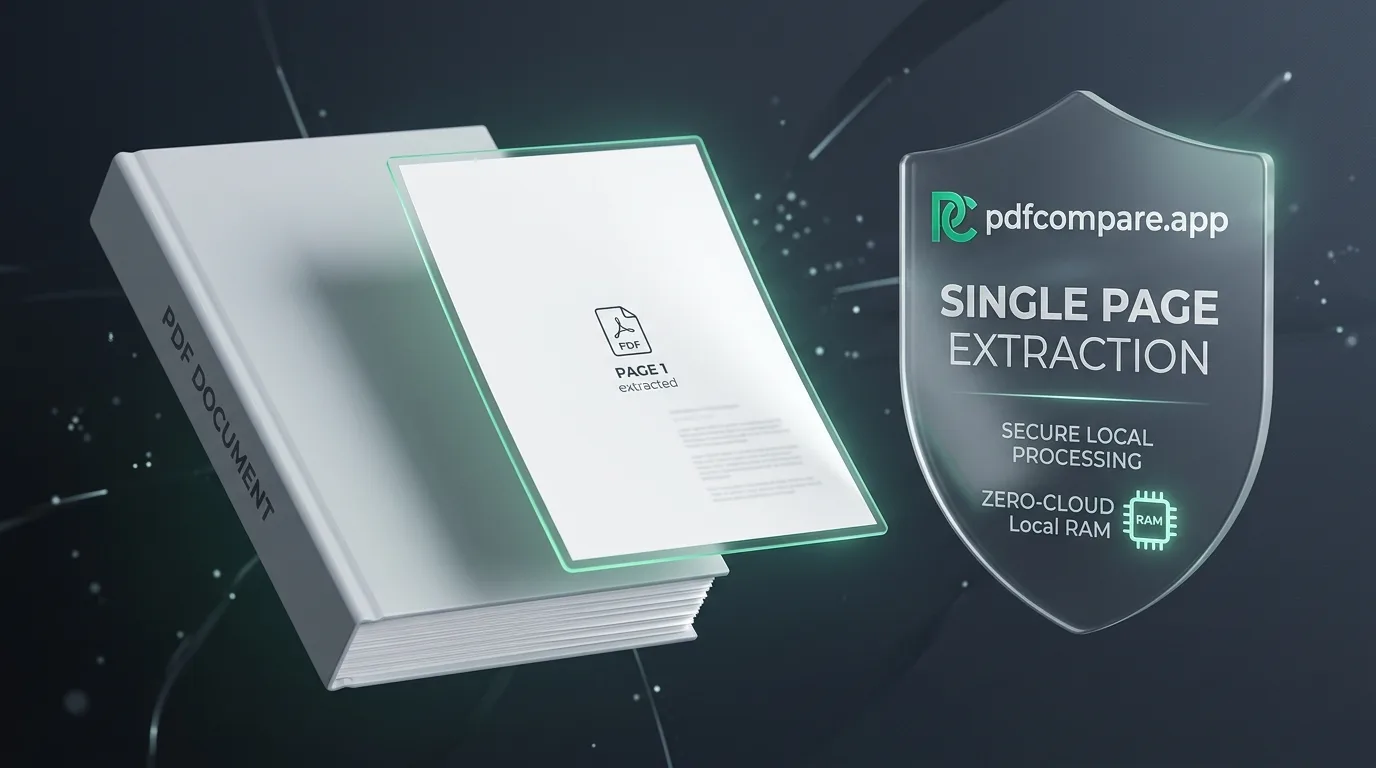
- Local Browser Page Extraction: Open PdfCompare Split PDF Tool, drop your file, click the single page thumbnail you need (or type its number), and click Download Selected as PDF. The page is sliced entirely inside local device RAM with zero file uploads.
- Google Chrome / Microsoft Edge (Built-in Virtual Print): Press
Ctrl + P(orCmd + P), change the Destination to Save as PDF, set Pages to Custom, enter the target page number (e.g.,3), and click Save. - macOS Apple Preview (Native Drag-and-Drop): Open the document in Preview, open the Thumbnails sidebar (
Cmd + Option + 2), and drag the desired page thumbnail directly onto your Desktop. - Windows 10/11 (Microsoft Print to PDF): Open in Edge or default viewer, press
Ctrl + P, select Microsoft Print to PDF, select your specific page number, and click Print.
Why Extracting a Single Page Is a Universal Pain Point
In professional, academic, and administrative work, you rarely need to transmit an entire multi-page document. Common scenarios include:
- Corporate Legal & Procurement: Isolating an executed signature counterpart or NDA rider from a 65-page master services agreement to share with outside counsel without exposing confidential financial schedules.
- Mortgage & Banking Applications: Submitting only Form 1040 (Pages 1 & 2) or a specific Schedule K-1 from a massive 120-page corporate tax return.
- Academic Research & Citations: Extracting a single empirical table, bibliography appendix, or journal article chapter for peer review.
- Reimbursements & HR: Sending an expense receipt located on Page 14 of an airline booking confirmation without sharing personal itinerary details.
However, traditional desktop applications like Adobe Acrobat place single-page extraction behind expensive paywalls, while conventional online converter websites require uploading confidential records to remote cloud servers. Below are the four best free, private, and permanent solutions to save only one page of a PDF.
Method 1: The Private In-Browser WebAssembly Method (Recommended)
When handling tax forms, bank statements, client contracts, or medical records, privacy is non-negotiable. Traditional online utility websites upload your PDF bytes to multi-tenant cloud servers where files are temporarily stored on third-party hard drives.
Our browser-native Split PDF Tool utilizes client-side WebAssembly (WASM) and native stream parsing to execute page extraction directly in your computer's local volatile memory (RAM).
How Client-Side WebAssembly Extracts a Single Page in Local RAM
Multi-Page PDF Load
Master document (e.g. 80-page contract or 120-page tax return) is loaded directly into browser ArrayBuffer memory.
Dictionary & Font Slicing
Native stream parser decouples Page 4 dictionary, retains embedded TrueType/OpenType font subsets, and discards unwanted pages.
Clean 1-Page Export
Standalone PDF file is compiled and triggered for immediate download to your computer, preserving crisp vector typography.
Step-by-Step Instructions:
- Open the free Split PDF Online Tool.
- Drag and drop your multi-page PDF into the workbench (or click Load Sample PDF to test the interface).
- Under the Mode selector, ensure Extract Selected Pages is active.
- In the visual thumbnail grid, click the single page you want to isolate (for instance, Page 3). Alternatively, type
3into the page range input box. - Click the emerald Download Selected as PDF button.
- Your browser instantly compiles and downloads
split_selected_pages.pdfto your local drive.
Why this method wins:
- Original page content: Page-object extraction avoids rasterizing the page. Verify fonts, annotations and any interactive fields in the saved file.
- Zero Cloud Leak Risk: Works completely offline once the page is loaded in your browser cache.
- Cross-Platform: Works identically on Windows, macOS, Linux, iOS, and Android.
Method 2: The Google Chrome & Microsoft Edge "Virtual Print" Trick
If you are already viewing a PDF inside Google Chrome, Microsoft Edge, Brave, or Opera, you can leverage the browser's native virtual printing subsystem to export a single page.
Step-by-Step Instructions:
- Open your PDF inside Google Chrome or Microsoft Edge (drag the file into any open browser tab).
- Press
Ctrl + Pon Windows/Linux orCmd + Pon macOS to launch the system print dialog. - In the Destination dropdown menu, select Save as PDF (do not select a physical printer hardware).
- Locate the Pages option. Click the dropdown and change All to Custom.
- Type the single page number you wish to extract (e.g.,
5). - (Optional) Expand More settings and verify that Scale is set to
Defaultto prevent unexpected margins. - Click Save, choose your target directory, name the file (e.g.,
Contract_Page_5.pdf), and confirm.
Recommended Virtual Print Settings:
- Destination:
Save as PDF - Pages:
Custom(input single page number, e.g.5) - Scale:
Default (100%) - Headers & Footers:
Unchecked(prevents browser timestamps from cluttering your document)
Important Technical Note: Virtual printing flattens interactive AcroForm form fields into static text. If your single page contains fillable form inputs that you wish to keep editable, use Method 1 instead.
Method 3: macOS Apple Preview Native Drag-and-Drop
For Apple Mac users running macOS Sonoma, Ventura, Monterey, or earlier versions, Apple Preview includes one of the most elegant hidden features for single-page extraction.
Step-by-Step Instructions:
- Double-click your PDF file to open it in Apple Preview (the macOS default PDF reader).
- If the left sidebar is not visible, press
Cmd + Option + 2or navigate to View > Thumbnails. - Scroll through the thumbnail rail on the left until you locate the page you need.
- Click and hold the thumbnail of the target page with your trackpad or mouse.
- Drag the thumbnail out of the Preview window and release it directly onto your Desktop (or into any Finder folder).
- macOS will immediately create a clean standalone PDF file containing solely that page.
Alternative Preview Method (For Custom File Naming):
If drag-and-drop feels clumsy on large displays:
- Click the desired page thumbnail.
- Go to File > Print... (
Cmd + P). - Under the Pages option, choose From: [3] to: [3].
- In the bottom-left corner of the print dialog, click the PDF dropdown and select Save as PDF....
Method 4: Windows 10/11 "Microsoft Print to PDF"
Windows 10 and Windows 11 ship with a built-in virtual printer driver called Microsoft Print to PDF. This allows you to isolate and save a single page from within any Windows program, including Acrobat Reader, Edge, or Word.
Step-by-Step Instructions:
- Right-click your PDF file in Windows File Explorer and select Open with > Microsoft Edge (or Adobe Acrobat Reader).
- Press
Ctrl + Pto trigger the Print dialog. - In the Printer dropdown menu, select Microsoft Print to PDF.
- In the Pages section, click the radio button for Page(s) and input the single page number (e.g.,
7). - Click the Print button at the bottom.
- A Windows "Save Print Output As" file dialog will appear. Enter a descriptive filename and choose your destination folder.
- Click Save. Windows creates the isolated single-page document.
Comprehensive Feature Matrix: Comparing All 5 Extraction Methods
Comparing All 5 Methods to Save One Page of a PDF
| Method | Best Suited For | Platform | Vector Quality | Preserves Forms? | Cloud Risk | Software Cost |
|---|---|---|---|---|---|---|
PdfCompare Split PDFRecommended | Sensitive documents, legal contracts, tax forms | All Browsers (Win, Mac, Linux, Mobile) | 100% Bit-Identical Vector | Yes Native stream copying retains AcroForms | 0% (Local RAM) | 100% Free Forever |
Google Chrome / Edge PrintBuilt-in Browser | Quick everyday desktop printing | Windows, macOS, Linux | High (Standard Vector) | No (Flattened) Flattens interactive inputs into dead text | 0% (Local Sandbox) | Free (Built-in) |
macOS Apple Preview DragMac Native | Mac desktop file reorganization | macOS (Sonoma, Ventura, etc.) | 100% Bit-Identical Vector | Partial Form elements sometimes shift coordinate origin | 0% (Local Apple OS) | Free with Mac |
Windows Print to PDFWin 10/11 Driver | General Windows utility tasks | Windows 10 & Windows 11 | High (Print spooler) | No (Flattened) Converts AcroForms into rasterized layout | 0% (Local Spooler) | Free with Windows |
Adobe Acrobat ProPaid Suite | Pre-press commercial print production | Windows, macOS (Desktop App) | 100% Bit-Identical Vector | Yes Full professional form editing support | Cloud Sync Risk | $239.88 / Year |
Critical Technical Pitfalls to Avoid When Saving Single Pages
While isolating one page of a PDF appears straightforward, standard extraction methods can introduce subtle technical errors:
1. Form Field Flattening & Calculation Ruin
If you are extracting an IRS tax form (such as Form W-9 or Form W-4), saving the page via Print to PDF often strips JavaScript calculation routines and AcroForm interactive input boxes, turning interactive form fields into static dead pixels. If the recipient needs to click and fill fields, always use native stream-slicing engines like PdfCompare.
2. Accidental DPI Rasterization
Certain low-tier virtual print drivers rasterize vector typography into 72 DPI or 150 DPI JPEG images before compiling the new PDF. When zoomed in to 200% or printed on a laser printer, the fonts will appear fuzzy and pixelated. Always verify that text in the resulting single-page PDF can still be highlighted, selected, and copied.
3. Hyperlink and Table of Contents Breakage
When extracting Page 12 of a 100-page manual, internal bookmarks and hyperlink destinations that point to Page 45 will become dead links. External web URLs (https://...) will generally remain functional, but cross-document references will be disabled.
4. Hidden CropBox vs. MediaBox Offsets
Architectural drawings, CAD blueprints, and pre-press prepress proofs often contain multiple coordinate boxes: MediaBox, CropBox, BleedBox, and TrimBox. Poorly engineered splitters may discard the CropBox, revealing uncropped printer calibration bars, color registration marks, or confidential margin notes that were hidden in the original document.
Post-Extraction Verification: Auditing Your Single Page
Once you have saved your single page, how can you check the saved wording and appearance against the original page?
- Open Compare Two PDF Files Online.
- Place your newly extracted single-page PDF into Slot 1.
- Place your original multi-page master document into Slot 2.
- Navigate to the corresponding page index in Slot 2.
- Click Compare Both PDFs Now.
- Inspect the side-by-side Myers redline differential and visual pixel overlay to ensure total typographic and graphical alignment.
Frequently Asked Questions
Can I save multiple separate single pages at the same time?
Yes. If you need every page of a 50-page document saved as individual files (page_01.pdf, page_02.pdf, etc.), use the Split All to ZIP mode on our Split PDF Tool. The engine processes all pages in your device RAM and packages them into a single downloadable .zip archive with one click.
How do I save just one page of a PDF on an iPhone or Android phone?
On iOS (iPhone/iPad), open the PDF in Safari or the Files app, tap the Share icon, tap Print, use a two-finger pinch-out gesture on the preview thumbnail of your desired page, tap the Share icon again, and tap Save to Files. On Android, open the PDF in Google Drive or Chrome, tap the 3-dot menu > Print, select Save as PDF, set Pages to your single page, and tap the PDF download icon.
How do I delete all pages except one?
Deleting all pages except one is mathematically identical to extracting that single page. Instead of manually deleting 49 pages one by one, use the Split PDF Tool, click solely on the one page you want to keep, and export it. The output will contain only your designated sheet.
Does saving one page reduce the file size?
In most cases, yes. A 50-page PDF that is 25MB will typically reduce to a 200KB–800KB single-page document. However, if the master document contains massive embedded font subsets or large background vector patterns that are globally shared across all pages, the single-page PDF may retain those embedded resources.
Can I convert my extracted single page into a high-res image?
Yes. If you need your single page formatted as an image for presentations, social media, or web embedding, upload the extracted single page to our PDF to PNG Converter to generate a lossless 300 DPI PNG image with transparent or white background support.
Related Tools & Resources
- Split PDF Pages Online Free — Extract pages, split by custom range, or slice all pages to ZIP.
- Compare Two PDF Files Online — Side-by-side visual diffing and word-level Myers redline audits.
- Compare PDF Online — Review document revisions, clause changes, and layout integrity.
- Text to PDF Converter — Convert plain text notes, Markdown documents, and code into standard PDFs.
- IRS Tax Form Fillers & Generators — Free client-side W-9, W-8BEN, and W-4 fillable PDF generators.
Common questions
How do I save only one page of a PDF for free?
The fastest and most secure way to save only one page of a PDF is using a client-side WebAssembly tool like PdfCompare Split PDF. Drag your document into the browser, click the exact page thumbnail you want to keep, and click 'Download Selected as PDF'. Your new single-page PDF is created instantly in your device's memory without uploading file bytes to any external cloud server.
How to save 1 page of a PDF using Google Chrome or Microsoft Edge?
Open the PDF file in Google Chrome or Edge. Press Ctrl + P (Windows) or Cmd + P (Mac) to trigger the Print dialog. Change the Destination dropdown to 'Save as PDF'. Under the Pages dropdown, select 'Custom' and enter the exact page number you wish to isolate (e.g., 4). Click Save, choose your folder, and your single-page document is saved.
How do I save one page of a PDF on a Mac without installing software?
On macOS, double-click the PDF to open it in Apple Preview. Ensure thumbnails are visible by clicking View > Thumbnails. Click the thumbnail of the single page you want to extract, then drag and drop it directly onto your Desktop or into Finder. Preview instantly generates a standalone single-page PDF file with the original vector quality.
How to save just one page of a PDF in Windows 10 or 11?
In Windows 10 or 11, right-click the PDF file and choose 'Open with > Microsoft Edge'. Press Ctrl + P to open the Print menu. Select 'Microsoft Print to PDF' as the printer, set Pages to 'Custom', type the specific page number, and click Print. Enter a file name and click Save.
Will saving just one page ruin the font quality or blur images?
If you use a client-side tool like PdfCompare or native OS extraction, the vector font glyphs, CMYK/RGB color profiles, and high-DPI image assets are copied losslessly as raw PDF stream objects. However, if you use low-quality virtual printer drivers or screen capture tools, vector curves may be rasterized into low-resolution bitmap graphics.
Can I save a single page from a password-protected PDF?
You must first unlock the document by entering its user password. Once unlocked in your browser session or PDF viewer, you can extract and save the individual page into a new, unencrypted standalone PDF file.
How do I verify that the extracted page matches the original document perfectly?
You can load both the single extracted page and the original multi-page source into a side-by-side comparison engine like PdfCompare to run an instant pixel-by-pixel and text-level differential audit, confirming that no legal clauses, numerals, or signatures shifted during extraction.