QuickAnswer: The Right Way to Split a PDF by Volume
Splitting a document is fundamentally different from extracting a single sheet. When you need to break a master document into multiple independent files, the best method depends directly on your page volume:
- Bulk Bursting (10 to 100+ Pages into Individual Files): Use the PdfCompare Split PDF Tool. Drop your file, select Split All to ZIP Archive, and download an organized
.zipcontaining zero-padded standalone PDFs (page_001.pdf,page_002.pdf...). Everything runs in browser WebAssembly memory with zero cloud uploads. - Small Manual Chunks (2 to 4 Sub-Documents on Mac): Open the file in macOS Apple Preview, press
Cmd + Option + 2to show thumbnails, highlight a cluster of pages, and drag them directly into a Finder folder. - Automated Enterprise Pipelines (Hundreds of Files Daily): Execute
qpdf --split-pages input.pdf page_%03d.pdfin terminal scripts or automate page loops in Python viapypdf.
The Splitting Workflow Decision Framework
Before choosing a tool, identify whether your task requires bursting every sheet or chunking into logical sections:
Option 01
High Volume
Full Document Burst
Splitting every single sheet into its own standalone PDF file (e.g. 50 scanned invoice sheets or classroom tests).
Option 02
Low Volume
Section & Chapter Split
Dividing a document into 2 to 4 major chunks, such as Agreement (1–12), Exhibit A (13–20), and Schedules (21–35).
Option 03
Automated
Server & Batch Scripting
Splitting hundreds of incoming documents automatically inside background workflows, queues, or scheduled pipelines.
The Virtual Print Manual Loop Trap
Many generic online guides recommend using Google Chrome or Microsoft Edge "Print to PDF" to split documents. While virtual printing works fine for pulling out one single section, using it to split an entire document into multiple files is an operational trap:
- The 40-Step Repetition Nightmare: If your master PDF has 40 pages and you want individual files, Chrome requires opening the print dialog, typing
1, savingpage1.pdf, opening print again, typing2, savingpage2.pdf, and repeating this manual sequence 40 times. - Form Flattening & AcroForm Destruction: Virtual print drivers do not copy raw PDF object streams. They render the page onto an internal print canvas and re-encode it, destroying interactive text inputs, checkboxes, and digital signatures.
- Loss of Bookmarks & Navigation: Virtual printing strips outline trees, internal jump links, and document metadata.
If you need to split more than two sections, choose a dedicated stream splitter rather than a virtual printer.
Method 1: Client-Side Burst Slicing to ZIP (Zero-Cloud Privacy)
For confidential business contracts, financial statements, and personal records, uploading documents to cloud-based PDF conversion websites creates compliance and security liabilities.
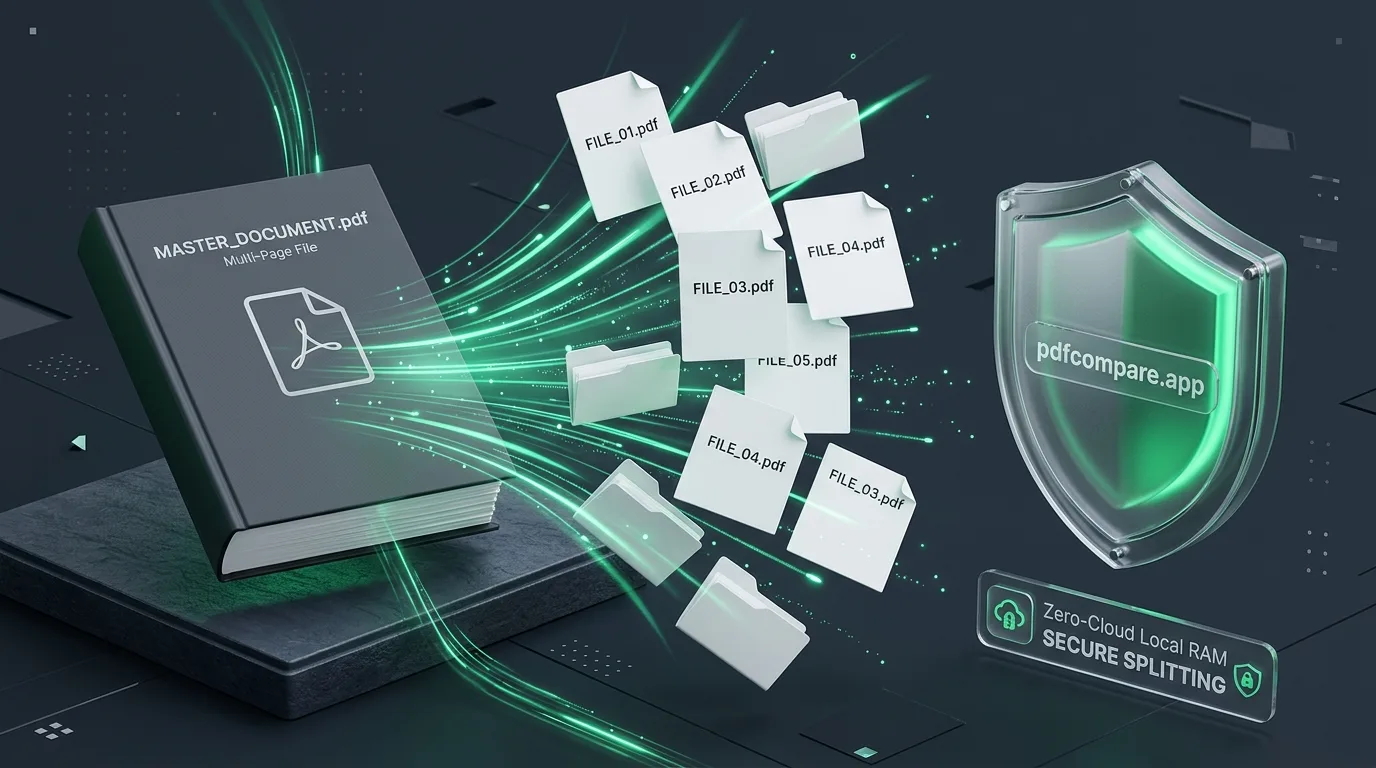
The PdfCompare Split PDF Tool parses your document using browser WebAssembly. It slices the PDF object tree in client memory, constructs zero-padded standalone PDF files, and compresses them directly into a single .zip archive inside your browser's RAM buffer.
Browser WebAssembly Multi-File Splitting in RAM
How documents are sliced into independent ISO 32000 files without server uploads.
Document Ingestion
Multi-page PDF is loaded directly into the browser's volatile ArrayBuffer memory.
Object Stream Slicing
WebAssembly iterates through page nodes, cloning glyph dictionaries and object trees.
ZIP Compilation
Files are zero-padded (page_001.pdf...) and bundled into a clean ZIP archive for download.
Step-by-Step Instructions:
- Navigate to the free Split PDF Online Tool.
- Drag and drop your multi-page document into the workbench.
- In the mode selector, choose Split All to ZIP Archive.
- The engine instantly detects page count and generates a preview of the target file structure.
- Click Split All into ZIP.
- Within seconds, your browser downloads a packaged
split_all_pages.ziparchive containingpage_001.pdf,page_002.pdf, etc., ready for distribution.
Looking to extract specific pages rather than bursting everything? If you only need to pull out a few select sheets into a single document, check our dedicated guide on how to extract pages from a PDF or how to save one page of a PDF.
Method 2: Visual Drag-and-Drop Splitting on macOS Apple Preview
If you use a Mac and only need to divide a document into two or three distinct chunks, macOS has a built-in visual splitting mechanism that requires no additional downloads:
- Open your document in Apple Preview.
- Press
Cmd + Option + 2(or click View > Thumbnails) to open the left thumbnail sidebar. - Create the First File:
- Hold
Shiftand click the range of page thumbnails for your first file (e.g. pages 1 to 15). - Drag the highlighted group directly out of the Preview sidebar and drop it onto your Desktop or into an open Finder window.
- macOS instantly generates a new standalone PDF containing only those 15 pages.
- Hold
- Create the Second File:
- Highlight the remaining thumbnails (e.g. pages 16 to 30) and drag them into Finder.
- Rename your newly created documents (
Part_1.pdf,Part_2.pdf).
This native macOS method preserves vector typography and image resolutions without cloud processing.
Method 3: Automated High-Speed CLI & Python Scripting
For system administrators, engineers, and data teams processing large batches of PDF files, command-line utilities offer the highest speed and repeatability.
Headless Splitting with qpdf:
qpdf is an open-source structural PDF manipulator that slices files losslessly without re-compressing images:
# Burst all pages into individual files with 3-digit zero padding:
qpdf --split-pages input_document.pdf page_%03d.pdf

# Split a master document into two distinct chapter files:
qpdf --empty --pages master.pdf 1-20 -- chapter_1.pdf
qpdf --empty --pages master.pdf 21-50 -- chapter_2.pdf
Python Automation with pypdf:
When integrating PDF splitting into data ingestion workflows, use this Python script with built-in zero-padding to keep files properly ordered:
from pypdf import PdfReader, PdfWriter

def split_pdf_to_pages(source_file, prefix="document"):
    reader = PdfReader(source_file)
    total = len(reader.pages)

    for i, page in enumerate(reader.pages):
        writer = PdfWriter()
        writer.add_page(page)
        # Apply 3-digit zero padding (e.g. document_001.pdf)
        filename = f"{prefix}_{i + 1:03d}.pdf"
        with open(filename, "wb") as output_stream:
            writer.write(output_stream)

    print(f"Decomposed {total} pages into separate PDF files.")

split_pdf_to_pages("quarterly_report.pdf", "q3_sheet")
Multi-Method Evaluation Matrix
Compare the primary methods for splitting multi-page documents across automation capability, file packaging, privacy, and software costs:
Methods for Splitting a PDF into Multiple Files
Technical evaluation across burst automation, file bundling, data confidentiality, and cost.
Best for: Batch bursting 50-100 pages into individual files or ZIP
Best for: Splitting small documents into 2 to 4 sections manually
Best for: Programmatic automated backend splitting pipelines
Best for: Prepress print operations and enterprise desktop setups
| Splitting Method | Burst Automation | ZIP Packaging | Privacy Architecture | Annual Cost |
|---|---|---|---|---|
PdfCompare Split ToolRecommended Web Browser (Cross-Platform) | 1-Click Automatic (All pages to ZIP) | Direct ZIP download | Zero (Local RAM Only) | Free ForeverUse Tool → |
macOS Apple PreviewMac Native macOS Built-in | Manual drag-and-drop per page cluster | Saves directly to Finder | Zero (Local Machine) | Included with macOS |
CLI Scripts (qpdf / pypdf)Developer Tool Terminal (Linux, macOS, Win) | Scripted loop (e.g. qpdf --split-pages) | Requires shell command | Zero (Local Shell) | Free (Open Source) |
Adobe Acrobat ProSubscription Desktop App (Win / Mac) | Organize Pages > Split Document | Extracts to local folder | Cloud Sync Prompts | $239.88 / user / year |
4 Technical Traps to Avoid When Splitting PDFs
Splitting a PDF is not simply chopping bytes in half; it involves restructuring an ISO 32000 object graph. Keep these technical nuances in mind to prevent unexpected errors:
1. The Embedded Font Subset Bloat Phenomenon
A common question after bursting a 10MB PDF containing 50 pages is: Why do the 50 separate files total 35MB combined? In the original master file, embedded font dictionaries (glyph curves, metric tables, character maps) are stored once and shared globally across all 50 pages. When you split that document into 50 independent files, each standalone PDF must embed its own local copy of those font dictionaries so external viewers can render the text cleanly.
2. The Numerical Sorting Bug (001 vs 1)
If you name burst files page_1.pdf, page_2.pdf ... page_10.pdf, standard file managers (Windows File Explorer, macOS Finder, Linux ls) will sort them alphabetically:
page_1.pdf, page_10.pdf, page_11.pdf ... page_2.pdf.
Always ensure your splitting tool or script uses zero-padding (e.g. page_001.pdf to page_010.pdf) to maintain correct chronological ordering.
3. Orphaned Hyperlinks and Cross-References
When a multi-chapter report contains internal hyperlinks (e.g. "See Section 4 on page 32"), splitting the file into separate chapter documents converts those internal object pointers into dead or orphaned links. If cross-file navigation is required, documents must be re-authored with external URI actions.
4. Verifying Visual & Layout Integrity
After batch-splitting sensitive legal filings or technical schematics, verify that no text blocks or page margins shifted during decomposition. Load both the original master document and the split outputs into our free PDF comparison tool to perform a pixel-level and text-level differential audit.
Frequently Asked Questions
Frequently Asked Questions
If the PDF is encrypted with an open password, you must supply the password once to decrypt the stream in memory. After decryption, client-side tools like PdfCompare Split PDF can slice the pages and export them as unencrypted, standalone files.
Related Document Management Tools
- Split PDF Online: Burst all pages to ZIP or extract custom page ranges in local browser RAM.
- Compare Two PDF Files: Pixel-level visual overlay and Myers word-level text redline comparison.
- Compare PDF Contracts: Specialized legal redline view for tracking revisions in agreements.
- Text to PDF Converter: Convert raw plain text and code blocks into crisp vector PDF documents.